What Is a Headless CMS? A Beginner's Guide

If you've spent any time researching website platforms lately, you've probably come across the term "headless CMS." It sounds technical and maybe a little intimidating, but the concept behind it is actually pretty simple once you break it down. In this guide, we'll answer the question "what is a headless CMS" in plain English, explain how it differs from traditional content management systems, and help you figure out whether it's the right choice for your next project.
Table of Contents
- What Is a Headless CMS?
- Headless CMS vs. Traditional CMS
- Traditional CMS
- Headless CMS
- How Does a Headless CMS Work?
- Key Benefits of a Headless CMS
- 1. Omnichannel Content Delivery
- 2. Developer Freedom
- 3. Better Performance and Scalability
- 4. Improved Security
- 5. Future-Proofing
- Potential Drawbacks to Consider
- Who Should Use a Headless CMS?
- Popular Headless CMS Platforms
- Final Thoughts
What Is a Headless CMS?
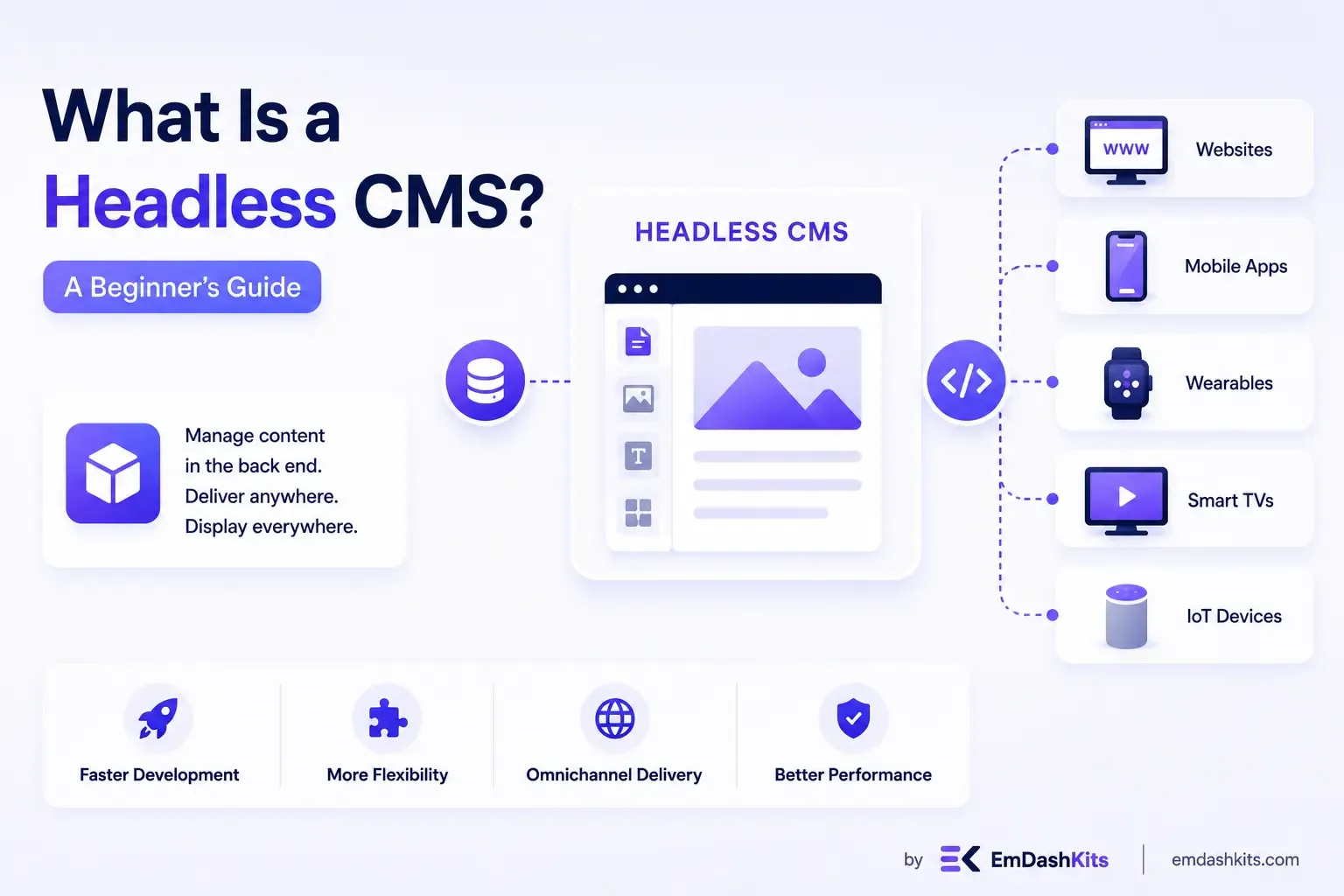
A headless CMS is a content management system that stores and manages your content but doesn't come with a built-in front end to display it. Instead of being tied to a specific website template or theme, the content lives in a database and gets delivered to any device or application through an API (Application Programming Interface).
Think of it this way: in a traditional CMS, the "body" (where your content lives) and the "head" (how that content is displayed to visitors) are connected. In a headless CMS, the head is removed — hence the name "headless." Developers can then attach any front end they want, whether that's a website, a mobile app, a smart TV app, or even a voice assistant.
This separation of content storage from content presentation is often called "decoupling," and it's the defining feature of headless architecture.
Headless CMS vs. Traditional CMS
To really understand what makes a headless CMS different, it helps to compare it to the traditional CMS model most people are familiar with — platforms like WordPress or Joomla in their default setup.
Traditional CMS
A traditional CMS handles everything in one package:
- Content creation and storage
- Website design and templates
- The final display layer that visitors see in their browser
Everything is bundled together, which makes traditional CMS platforms easy to set up and use, especially for beginners. You install a theme, add your content, and your website is live. The downside is that your content is locked into that specific front-end structure, making it harder to publish the same content across multiple platforms.
Headless CMS
A headless CMS only handles the back end — content creation, storage, and organization. There's no built-in front end. Instead, content is pushed out via an API to whatever front end a developer builds, whether that's a React website, an iOS app, a smartwatch interface, or a digital kiosk.
This means the same piece of content (say, a product description) can be written once and displayed consistently across a website, a mobile app, and even an in-store display, all pulled from the same source.
How Does a Headless CMS Work?
Here's a simplified breakdown of the process:
- Content creation: Editors and writers add content into the CMS using a familiar dashboard, just like they would with a traditional CMS.
- Content storage: The CMS stores that content in a structured, organized format (often as JSON) rather than tying it to any specific design.
- API delivery: When a website, app, or other channel needs that content, it sends a request through an API.
- Front-end rendering: Developers use their own choice of front-end technology (like React, Vue, or Next.js) to fetch that content and display it however they want.
Because the content and the presentation layer are separate, teams can update the design of a website without touching the content, and vice versa.
Key Benefits of a Headless CMS
1. Omnichannel Content Delivery
Since content isn't tied to a single front end, you can publish the same content across websites, mobile apps, smart devices, digital signage, and more, all from one central hub. This is especially valuable for brands managing content across multiple platforms.
2. Developer Freedom
Developers aren't locked into a specific templating system or programming language. They can build the front end using whatever framework fits the project best, whether that's a fast, modern JavaScript framework or something more specialized.
3. Better Performance and Scalability
Because headless CMS platforms typically deliver content through lightweight APIs, websites built on them often load faster than those built on traditional, template-heavy systems. This can also make it easier to scale as traffic grows.
4. Improved Security
With no public-facing front end tied directly to the CMS, there's a smaller attack surface for hackers to exploit. Many common vulnerabilities in traditional CMS platforms come from front-end plugins and themes, which headless setups avoid entirely.
5. Future-Proofing
As new devices and platforms emerge, a headless CMS makes it easier to adapt. Since content isn't tied to a specific presentation layer, businesses can add new channels without rebuilding their entire content infrastructure.
Potential Drawbacks to Consider
A headless CMS isn't the right fit for everyone. Here are a few trade-offs worth knowing about:
- Requires development resources: Since there's no built-in front end, you'll need developers to build and maintain the presentation layer. This makes headless CMS platforms less beginner-friendly than traditional, all-in-one systems.
- No built-in preview: Some headless CMS platforms make it harder for content editors to preview exactly how their content will look once published, since the CMS itself doesn't render the final page.
- Higher upfront cost and complexity: Setting up a headless CMS often takes more time and technical expertise upfront compared to installing a traditional CMS theme.
Who Should Use a Headless CMS?
A headless CMS tends to be a great fit for:
- Businesses managing multiple digital channels, like a website, mobile app, and IoT devices, that all need to share the same content.
- Companies with dedicated development teams who want the flexibility to build custom front-end experiences.
- Organizations planning for growth, since headless systems tend to scale more easily as new platforms and channels are added.
- Teams prioritizing site speed and performance, particularly for content-heavy websites or e-commerce stores.
On the other hand, if you're a solo blogger, small business owner, or anyone who wants a simple, all-in-one solution without hiring a developer, a traditional CMS like WordPress might still be the better starting point.
Popular Headless CMS Platforms
If you're ready to explore headless CMS options, here are a few widely used platforms worth researching:
- Contentful
- Sanity
- Strapi
- Storyblok
- Prismic
Each of these platforms offers slightly different features, pricing models, and levels of customization, so it's worth comparing a few before committing.
Final Thoughts
So, what is a headless CMS? At its core, it's a content management system that separates content storage from content display, giving developers the freedom to build custom front-end experiences while giving content teams a central place to manage everything. It offers flexibility, speed, and scalability that traditional CMS platforms often can't match, but it does require more technical resources to set up and maintain.
If your business needs to deliver content across multiple platforms, or you're planning for long-term growth and flexibility, a headless CMS could be a smart investment. But if you're just getting started and want something simple, a traditional CMS might still serve you well until your needs become more complex.
Understanding the basics now will help you make a more informed decision as your website or digital strategy evolves.
Comments